

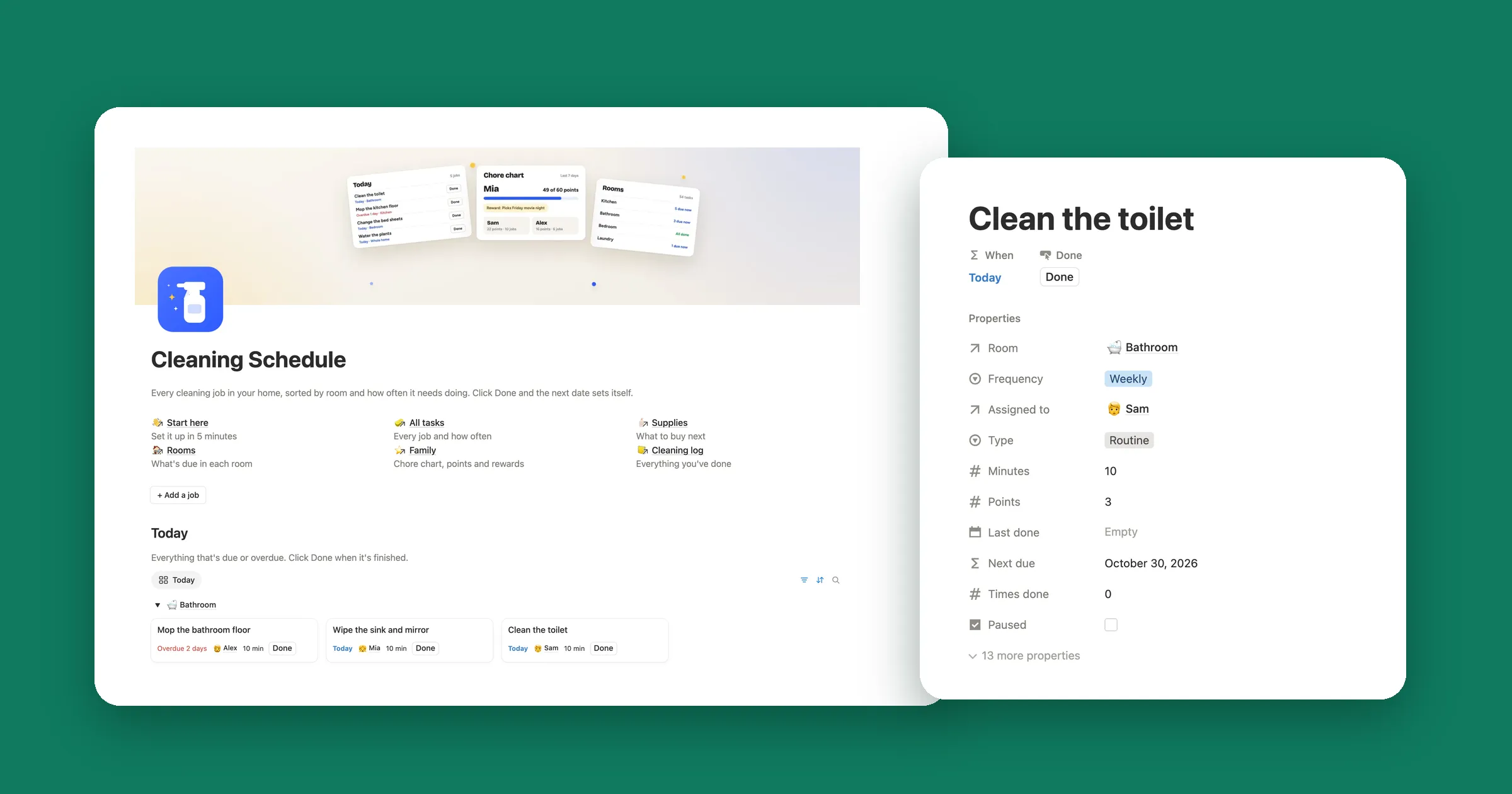

Try it: mark a chore done
Five chores, each with how often it comes back and when you last did it. Click Mark done and watch Next due and Due move, the same way the formulas below work in Notion. Change Every or Unit to see a new date.
Today is Nov 6
- Water the plants Every Last done Nov 4 Next due Nov 7Due tomorrow
- Change the bed sheets Every Last done Oct 30 Next due Nov 6Due today
- Clean the fridge Every Last done Sep 20 Next due Oct 20Overdue
- Descale the kettle Every Last done Oct 16 Next due Dec 16In 40 days
- Wash the windows Every Last done empty Next due Nov 6Due today
Click Mark done on Clean the fridge, or change how often a chore comes back.
1. Set up the database
Each recurring task is one page in a database. Make a table and give it these properties:
| Property | Type | What it holds |
|---|---|---|
| Task | Title | The chore, like Clean the fridge |
| Every | Number | How many days, weeks or months between turns |
| Unit | Select | Three options: days, weeks and months |
| Last done | Date | The day you last did it |
Name the Unit options exactly days, weeks and months, in lowercase. The formula hands that word straight to Notion’s date math.
2. The Next due formula
Add a Formula property called Next due and paste this:
if(
  empty(prop("Last done")),
  today(),
  dateAdd(
    prop("Last done"),
    prop("Every"),
    prop("Unit")
  )
)
dateAdd adds Every and Unit to Last done. A task you haven’t done yet has no Last done, so it gets today’s date and shows up straight away. Here’s
what Notion showed in our test on October 31:
| Task | Every | Last done | Next due |
|---|---|---|---|
| Water the plants | 3 days | October 29 | November 1 |
| Change the bed sheets | 1 week | October 24 | October 31 |
| Clean the fridge | 1 month | September 15 | October 15 |
| Descale the kettle | 2 months | October 10 | December 10 |
| Wash the windows | 3 months | Empty | October 31, today |
3. Show what’s due
A date alone doesn’t tell you much at a glance. Add one more formula, Due, that says it in words:
lets(
  next, if(
    empty(prop("Last done")),
    today(),
    dateAdd(
      prop("Last done"),
      prop("Every"),
      prop("Unit")
    )
  ),
  d, dateBetween(
    next, today(), "days"
  ),
  ifs(
    d < 0, "Overdue",
    d == 0, "Due today",
    d == 1, "Due tomorrow",
    "In " + format(d) + " days"
  )
)
The part after next is the Next due formula again, so Due works on its own. dateBetween counts the days from today to the next date,
and ifs picks the first line that fits. Our five chores showed Due tomorrow, Due today, Overdue,
In 40 days and Due today.
Then sort the table so the most urgent chore comes first: click the sort icon (two arrows) at the top right of the table and pick Next due.

4. Add a Mark done button
Typing today’s date each time gets old fast. A Button property does it in one click:
- Click + at the end of the table’s header, pick Button and name it Done.
- Click the Done column name and pick Edit automation.
- Click the name at the top of the box and type Mark done. That’s the text on every button.
- Click New action, pick Edit property, then Last done, then Date triggered.
- Click Save.
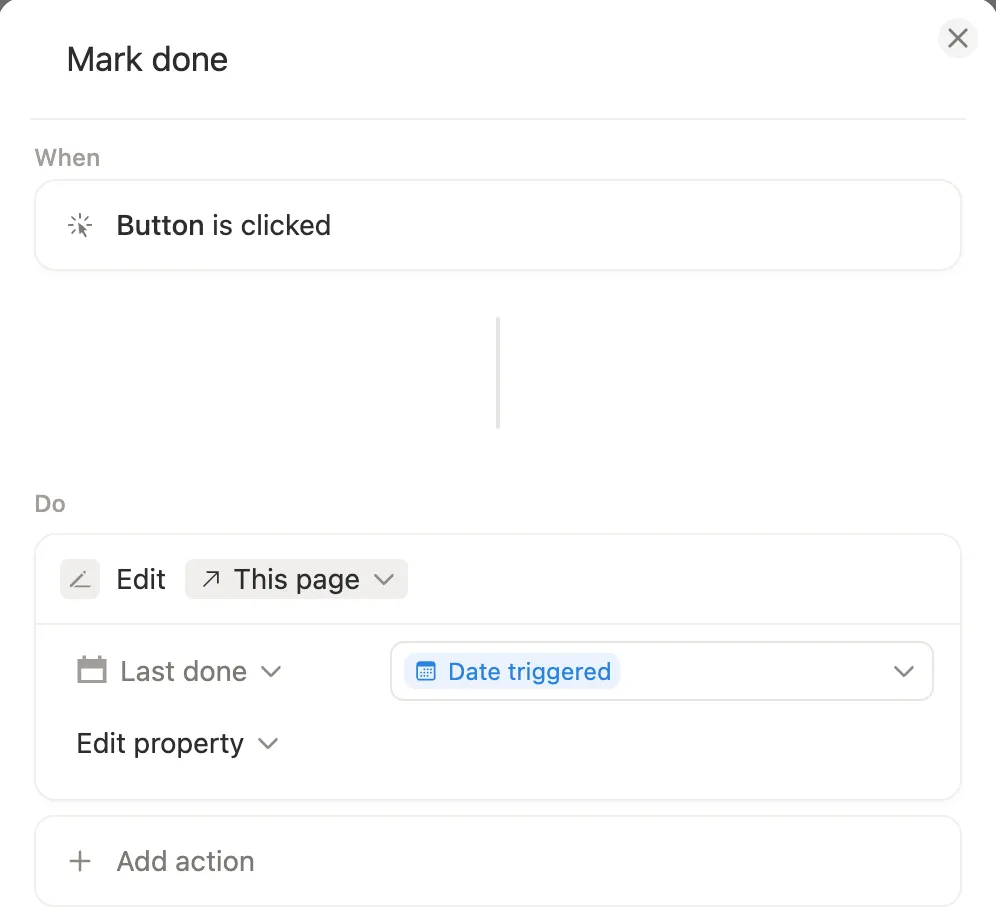
In our test, Clean the fridge was overdue since October 15. One click on Mark done set Last done to October 31, Next due jumped to November 30 and Due changed to In 30 days. Date triggered saved just the day, with no time, like the dates you type in yourself.

Or let Notion make a new page on a schedule
Notion has a repeat option of its own. Make a database template, open the New dropdown, click ••• next to the template and choose Repeat. You can pick daily, weekly, monthly, yearly or a custom schedule, like every Tuesday and Thursday, and Notion adds a fresh page each time.
That suits things tied to set days, like a weekly review or a daily checklist. For chores that come back a set time after you last did them, the Mark done button keeps one page per chore, so the list doesn’t fill up with copies. For a checklist you want to start fresh every morning, see how to reset checkboxes in Notion.
If your recurring task isn’t working
- Next due is empty or shows an error. Check that Every has a number and Unit says exactly days, weeks or months, and that the property names in the formula match yours, capitals included.
- A new task says Due today. That’s on purpose: with no Last done, the task counts as due now. Click Mark done once you’ve done it.
- A task stays Overdue. Nothing moves until you click Mark done. The next date then counts from the day you click.
- The count is a day off. Use
today(), notnow().now()includes the time, which can drop a day, as our countdown formula test showed.