

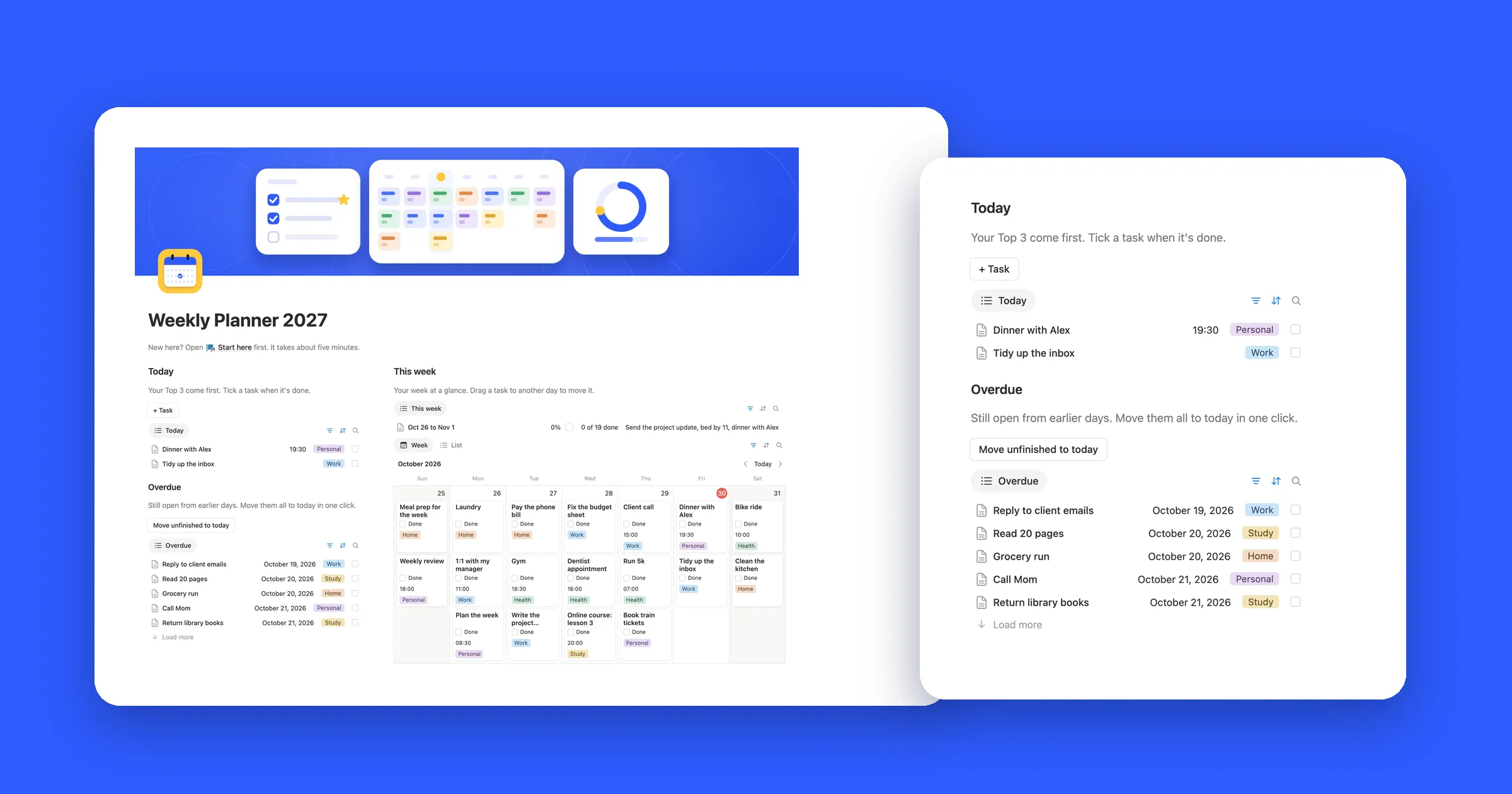

Try the Move unfinished button
Tick a task or two, then click Move unfinished to today. Overdue tasks you haven’t done move to today; done ones stay put, just like the Notion button in step 4.
This week
4 of 9 done
Today
Overdue
Nothing overdue. Nice.
1. Make one Tasks database
Everything you plan lives in one list. Today, this week and the calendar are just different ways of looking at it.
- Make a new page called Weekly planner. On it, type
/tableand pick the table option to add a database. Call it Tasks. - Add the properties below.
| Property | Type | What it’s for |
|---|---|---|
| Task | Title | What to do |
| Date | Date | The day, and a time if it has one |
| Done | Checkbox | Tick it when it’s done |
| Area | Select | Work, Personal, Home and so on |
For a task at a set time, click its Date and turn on Include time.
2. Today and this week
Add a Formula property called This week. It’s ticked for any task from this Monday to this Sunday:
let(
  monday, dateSubtract(today(), day(today()) - 1, "days"),
  days, dateBetween(prop("Date"), monday, "days"),
  days >= 0 and days <= 6
)
monday goes back from today to the start of the week, and days counts how far the task is from it. Zero to six means this week. In our test on a Saturday, it ticked Monday to Sunday and nothing on either side.
- Click + next to the view name and add a List view called Today. Filter it to Date is Today.
- Add a Calendar view called This week. In its settings, set Show calendar as to Week, so you see seven days side by side. Drag a task to another day to move it.
- On your phone, a list reads better than a calendar. Add one more List view filtered to This week is checked and sorted by Date.
3. Catch what slipped
Add another formula called Overdue. It’s ticked for tasks with a date before today that aren’t done:
not prop("Done") and not empty(prop("Date")) and prop("Date") < today()Add a List view called Overdue, filtered to Overdue is checked and sorted by Date. A task with a time earlier today doesn’t count: in our test, a task at 08:00 on the same day stayed off the list.
4. Move unfinished to today
This is the button that saves a Monday. It works on the free plan.
- Above the Overdue view, type
/button. Name it Move unfinished to today. - Under Do, click New action and choose Edit pages in. Pick your Tasks database.
- Click all pages and add a filter: Overdue is checked.
- Click Edit a property, choose Date and set it to Date triggered, the day you click. Click Done.
In our test, one click said Edited 3 pages and put all three overdue tasks on today. Done tasks weren’t touched.
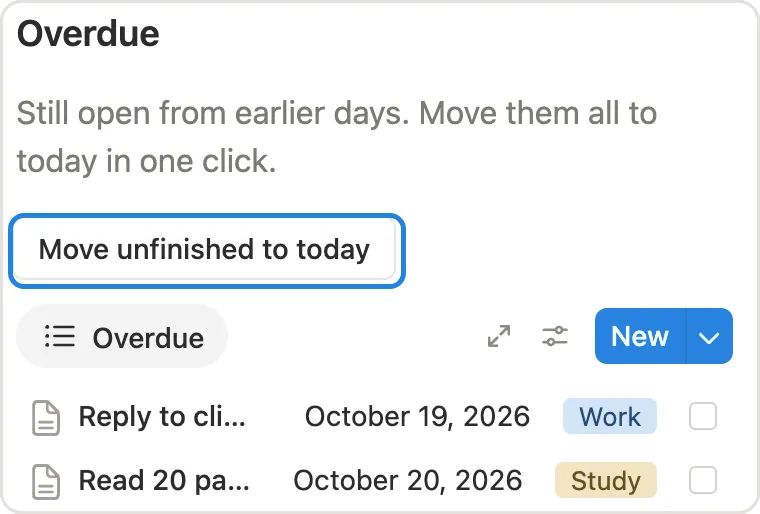
The button sets the date only, so a task at 09:00 loses its time when it moves. Give it a new time if it still needs one.
5. See how the week is going
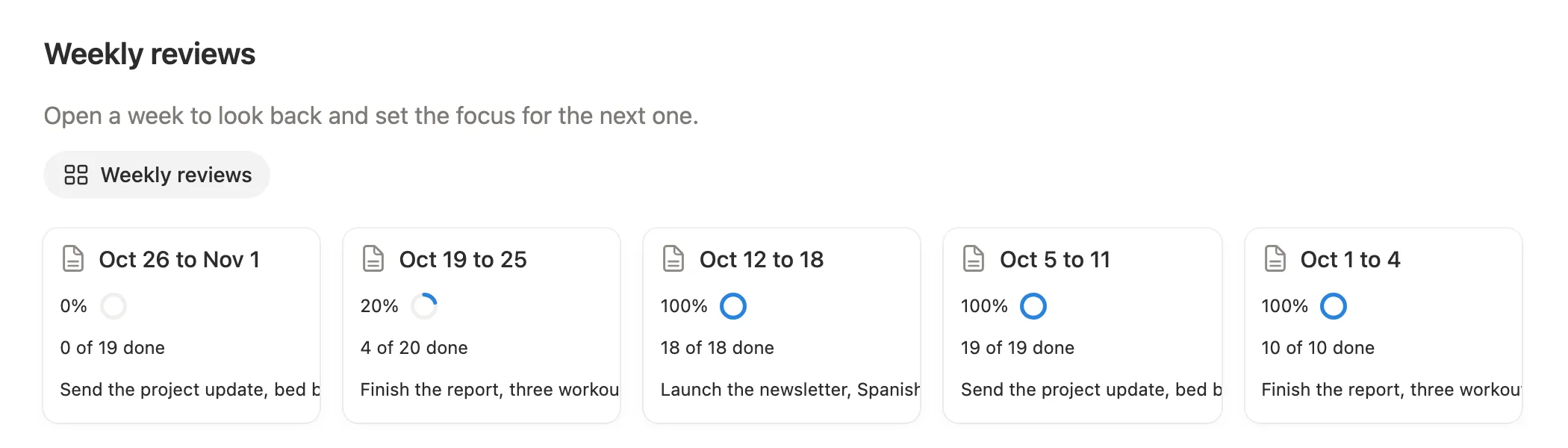
Add a Table view called Week progress, filtered to This week is checked. Hover under the Done column, click Calculate and choose Percent checked. The share of this week’s tasks you’ve done now sits at the bottom of the table.
6. Tasks that come back every week
For chores like laundry or a weekly review, make a database template. Click the arrow next to New, choose New template and set its Date to Today. Then click Duplicate every at the top of the template, choose Week and pick the day. The task now shows up on that day every week.