

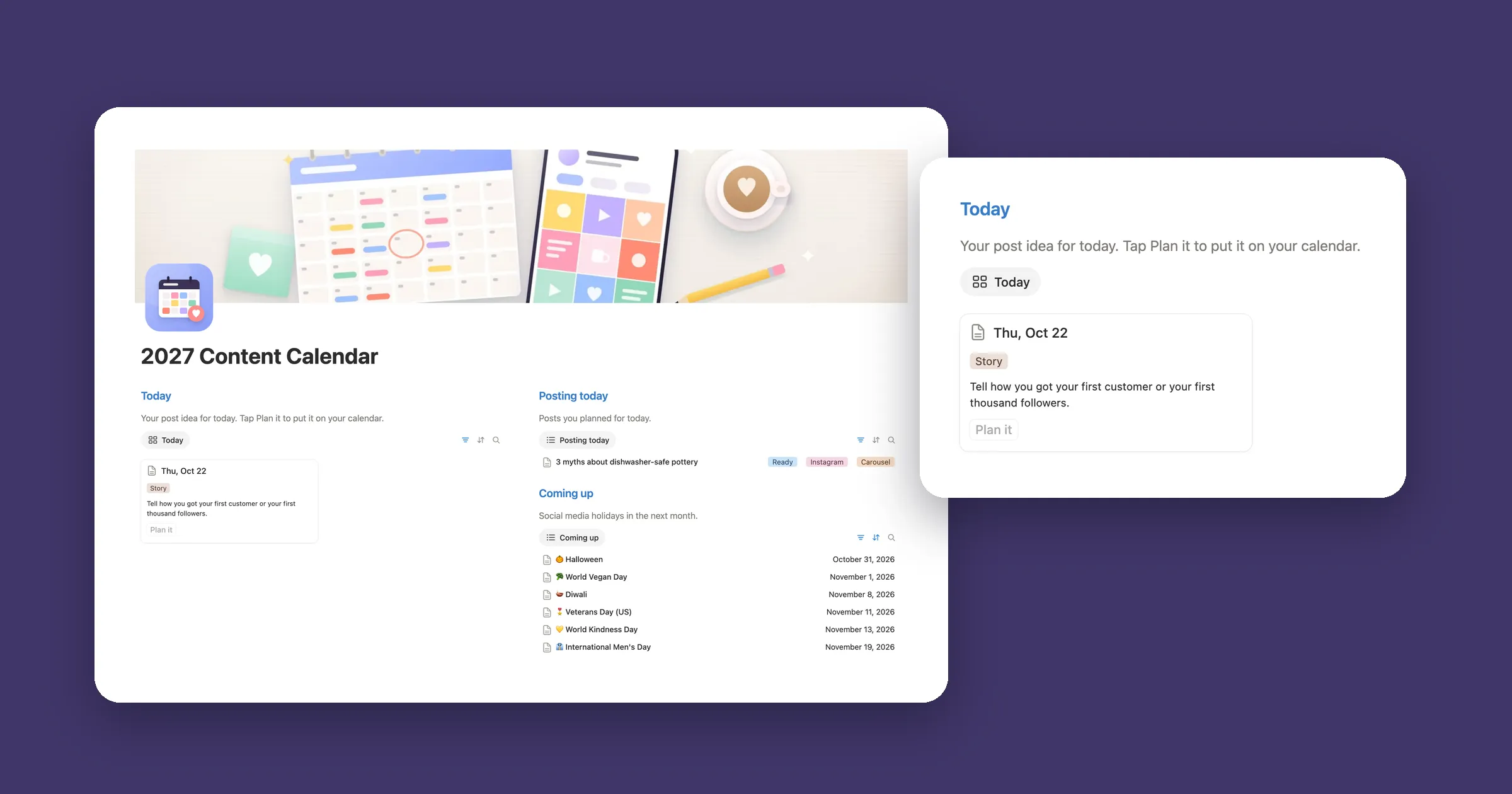

Try it: from idea to posted
Move a post along the board. Once it’s posted, type its views, likes and comments, and Engagement works itself out the same way the formula in this guide does in Notion. The posts are our test, a small bakery’s week.
Idea 2
- Customer of the week
- Sourdough starter questions, answered
Drafting 1
- Meet our new baker
Ready 1
- Halloween cookies are here
Posted 2
- Behind the scenes: the 5 a.m. bake Engagement 10.1%
- How to keep bread fresh Engagement 8.7%
1. One database for every post
Every post goes into one database, from a rough idea to something you posted last week. The calendar, the board and the lists in this guide are all views of it.
- Make a new page called Content. On it, type
/table, pick the table option and call the database Posts. - Add the properties below. For Status, pick the Status type and rename its options to Idea, Drafting, Ready and Posted.
- Add the posts you have in mind, with a date for the ones you’ve planned.
| Property | Type | What it’s for |
|---|---|---|
| Post | Title | What the post is about |
| Date | Date | The day it goes out |
| Status | Status | Idea, Drafting, Ready or Posted |
| Platform | Multi-select | Instagram, TikTok, Pinterest and so on |
| Format | Select | Reel, Carousel, Photo, Video |
| Pillar | Select | The topic it belongs to, like Tips or Offers |
| Views, Likes, Comments | Number | How it did, once it’s live |
Write the caption, the hook or the script inside the post’s page. The properties stay short, and everything for one post is in one place.
2. Your posts on a calendar
- Click + next to the view name, add a Calendar view and call it Calendar. Notion places each post on its Date.
- In the view’s Properties, show Status and Platform, so every card says where it is and where it goes.
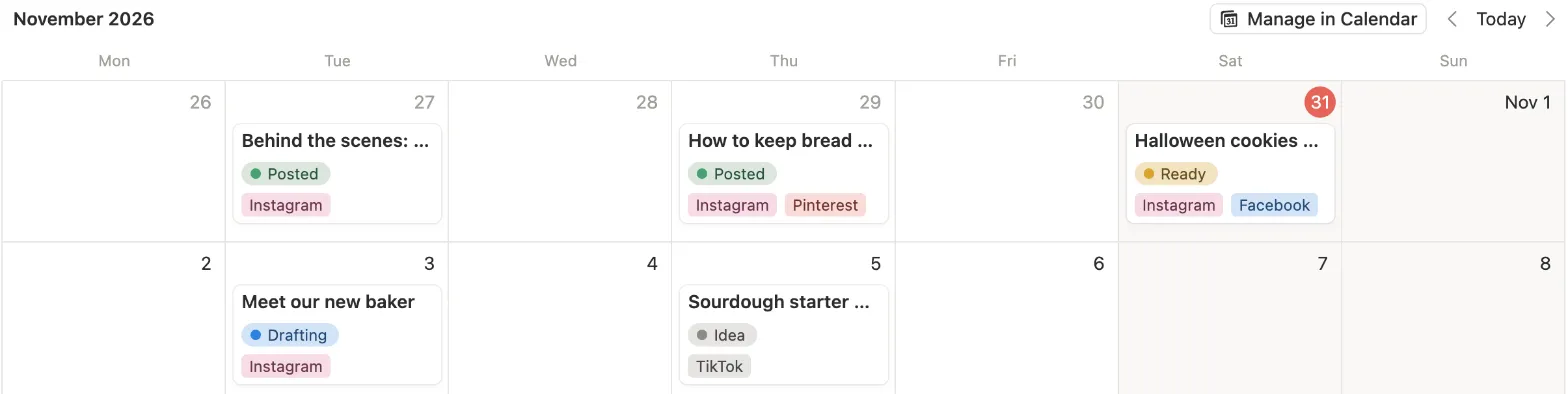
Posts without a date don’t show on the grid. Notion keeps count of them in a No date button at the top of the view: ours said No date (2).
3. A pipeline from idea to posted
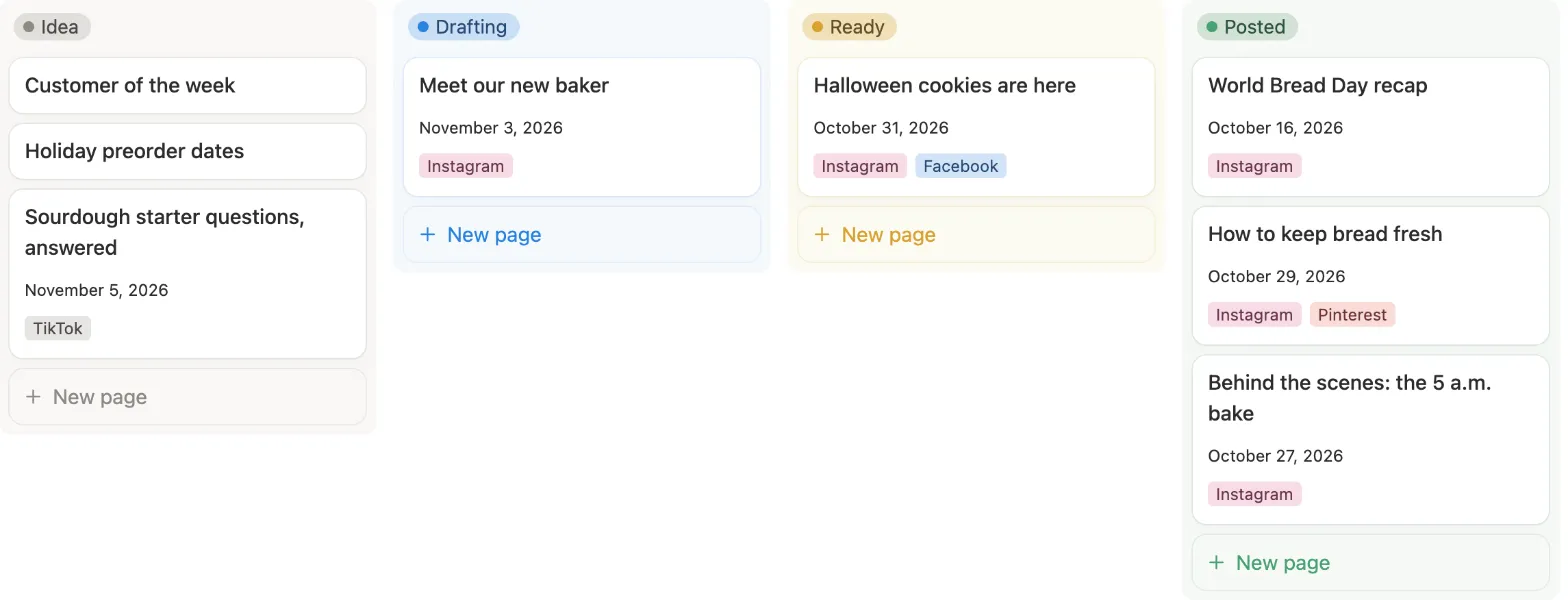
The calendar shows when. The board shows how far along each post is.
- Add a Board view called Pipeline and group it by Status. You get one column for each option.
- In Properties, show Date and Platform.
4. An idea bank for posts without a date
Good ideas come at odd times. Keep them in the same database with no date, and give them a view of their own.
- Add a List view called Idea bank.
- Click Filter, pick Date and set it to Is empty. In Properties, show Pillar.
In our test it showed Customer of the week and Holiday preorder dates, the two posts with no date. When you give an idea a day, it leaves the list and turns up on the calendar.
5. Engagement on every post
Views alone don’t say much. Engagement is the share of people who saw a post and did something with it. Add a formula called Engagement:
if(
  prop("Views") > 0,
  (prop("Likes") +
    prop("Comments")) /
    prop("Views"),
  toNumber("")
)
Then click the column name, pick Edit property, set Number format to Percent and Decimal places to 1.
Our 5 a.m. bake reel had 1840 views, 162 likes and 23 comments, and showed 10.1%. The bread tip, 920 views, 71 likes and 9 comments, showed 8.7%. The part
with toNumber("") keeps a post with no views empty instead of 0%, so it never looks like a flop before you’ve typed anything in.
Want saves and shares to count too? Add them as numbers and put them next to Likes and Comments in the formula.
6. Your top posts
Last, a list that puts what worked best on top, so you know what to make more of.
- Add a Table view called Top posts.
- Click Filter, pick Status and tick Posted.
- Click Sort, pick Engagement and set it to Descending.
