


Try it: your grade and what you need
Type a score, or change the goal. Grade so far and Need change the same way the two course formulas in this guide work in Notion. The sample is our test: Biology and History, with the scores we typed in.
Grade so far
80%
20 of 100 weight graded
Need 87% on the rest
- Lab report 1 Lab / 20 10
- Quiz 1 Quiz / 10 10
- Midterm Exam / 100 30
- Final exam Exam / 100 50
- Read chapter 5 Homework Not graded None
Grade so far
92%
10 of 30 weight graded
Need 89% on the rest
- Essay draft Essay / 100 15
- Quiz 1 Quiz / 50 10
- Map quiz Quiz / 20 5
1. A page for each course
A study planner needs two databases: one for your courses, and one for everything you have to do in them. Start with the courses.
- Make a new page called School. On it, type
/table, pick the table option and call the database Courses. - Rename the first column to Course. Add a Number property called Goal, for the grade you’re aiming for, like 85.
- Add a page for each class you take this term.
Goal is optional. Leave it empty and the Need line later in this guide stays blank for that course.
2. One list for all schoolwork
Every assignment, quiz, exam and reading goes into one database, linked to its course. One list is easier to sort and filter than a table on every course page.
- On the same page, add a second database called Schoolwork with the properties below.
- When you add the Course relation, pick the Courses database, turn on Show on Courses and name it Schoolwork.
| Property | Type | What it’s for |
|---|---|---|
| Name | Title | The work, like Midterm |
| Course | Relation | The course it belongs to |
| Type | Select | Homework, Quiz, Exam, Essay, Lab, Review |
| Due | Date | When it’s due |
| Done | Checkbox | Tick it when you hand it in |
| Score | Number | What you got, once it’s marked |
| Out of | Number | What it’s marked out of, like 20, or 100 for a percentage |
| Weight | Number | How much it counts, like 30 for 30% of the grade |
Score and Out of let you type a grade the way it comes back. In our test, a history quiz marked 46 out of 50 went in as just that, with no math by hand.
Leave Weight empty on anything that isn’t graded, like readings. It still shows up in your lists, but it never changes your grade.
3. Days left on every assignment
A due date tells you when, but not how close it is. Add a Formula property to Schoolwork called Days left:
if(
  prop("Done"),
  "Done",
  if(
    empty(prop("Due")),
    "",
    lets(
      d, dateBetween(prop("Due"), today(), "days"),
      ifs(
        d < 0, "Overdue",
        d == 0, "Due today",
        d == 1, "Due tomorrow",
        format(d) + " days left"
      )
    )
  )
)
It says Done once you tick Done, Overdue when the date has passed, and counts the days otherwise. We tested it on Saturday, October 31: a map quiz from October 29 showed Overdue, an essay draft due that day showed Due today, and a midterm on November 4 showed 4 days left.
4. What’s due this week
The view you’ll open most is a short list of what’s due soon, with anything you’ve missed on top.
- Click + next to the view name, add a List view and call it This week.
- Click Filter, pick Done and set it to Unchecked.
- Add a second filter on Due. Change Is to Is on or before and pick One week from now.
- Click Sort, pick Due and leave it on Ascending. In the view’s Properties, show Course, Type and Days left.
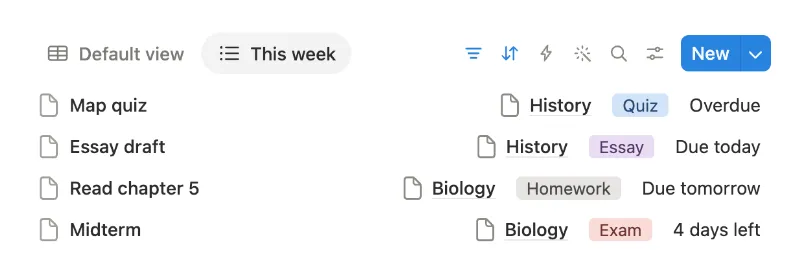
On or before, rather than only this week, keeps overdue work on the list until you tick it. Anything you tick Done drops off.
Want your due dates on a calendar too? Add a Calendar view to Schoolwork. It places each item on its Due date.
5. Study sessions before an exam
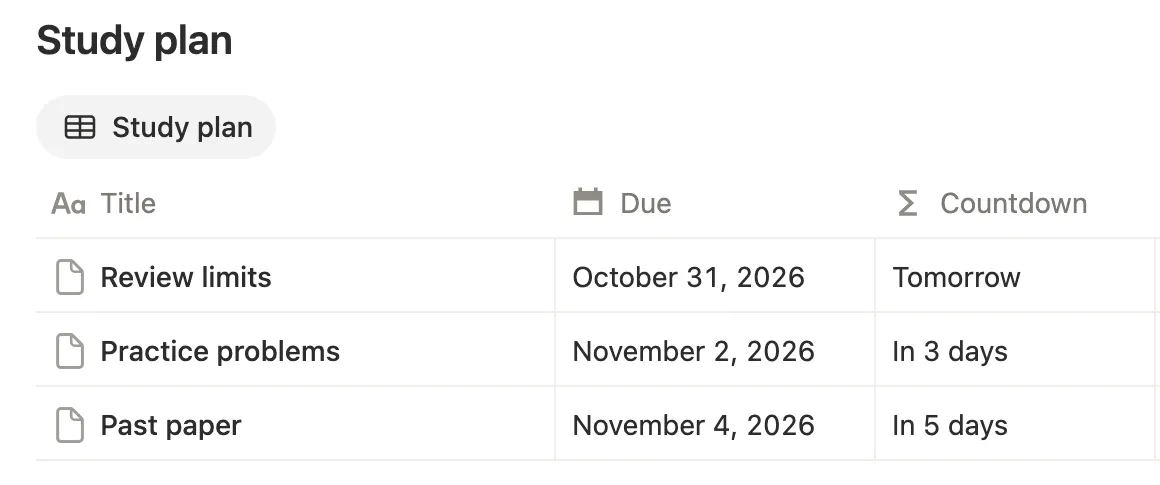
A study plan is more schoolwork. For each exam, add a few review sessions with Type set to Review, the day you plan to study as the Due date, and no Weight.
They turn up in This week on their day, next to everything else, and they never change your grade. In our test, Read chapter 5 had no weight: it sat in This week as Due tomorrow, and Biology’s grade stayed at 80%.
6. Your grade so far
Now the grades. Add a formula to Courses called Grade so far. It takes the course’s schoolwork that has both a Score and a Weight, turns each score into a share of its Out of, and averages them by weight:
lets(
  graded, prop("Schoolwork").filter(
    !empty(current.prop("Score")) and
      !empty(current.prop("Weight"))
  ),
  weight, graded.map(
    current.prop("Weight")
  ).sum(),
  if(
    weight == 0,
    "No grades yet",
    format(round(
      graded.map(
        current.prop("Score") /
          current.prop("Out of") *
          current.prop("Weight")
      ).sum() / weight * 100
    )) + "%"
  )
)
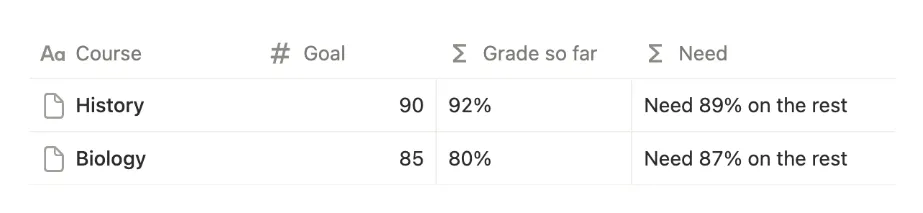
History had one quiz back, 46 out of 50 with a weight of 10, and showed 92%. Biology had a lab report at 18 out of 20 and a quiz at 7 out of 10, both with a weight of 10, and showed 80%.
Until something has a score, the formula says No grades yet instead of 0%.
7. The score you need for your goal
The last formula answers the question before every exam: what do I need on the rest? Add a formula to Courses called Need. It works out the average you need on the weighted work that has no score yet:
lets(
  work, prop("Schoolwork").filter(
    !empty(current.prop("Weight"))
  ),
  graded, work.filter(
    !empty(current.prop("Score"))
  ),
  open, work.filter(
    empty(current.prop("Score"))
  ),
  earned, graded.map(
    current.prop("Score") /
      current.prop("Out of") *
      current.prop("Weight")
  ).sum(),
  total, work.map(
    current.prop("Weight")
  ).sum(),
  left, open.map(
    current.prop("Weight")
  ).sum(),
  need, ceil(
    round(
      (prop("Goal") / 100 * total - earned) /
        left * 10000
    ) / 100
  ),
  ifs(
    empty(prop("Goal")), "",
    left == 0, "Nothing left to grade",
    need <= 0, "Goal reached",
    "Need " + format(need) +
      "% on the rest"
  )
)
History, with a goal of 90, said Need 89% on the rest. Biology, with a goal of 85 and 80 of its 100 weight still open, said Need 87% on the rest. Once even zeros would keep you at your goal, it says Goal reached, and once everything is scored, Nothing left to grade.
The round inside is there on purpose. A computer can store a number like 0.89 as a hair more, and rounding up would turn that into 90. Rounding to
two decimals first stops it.