

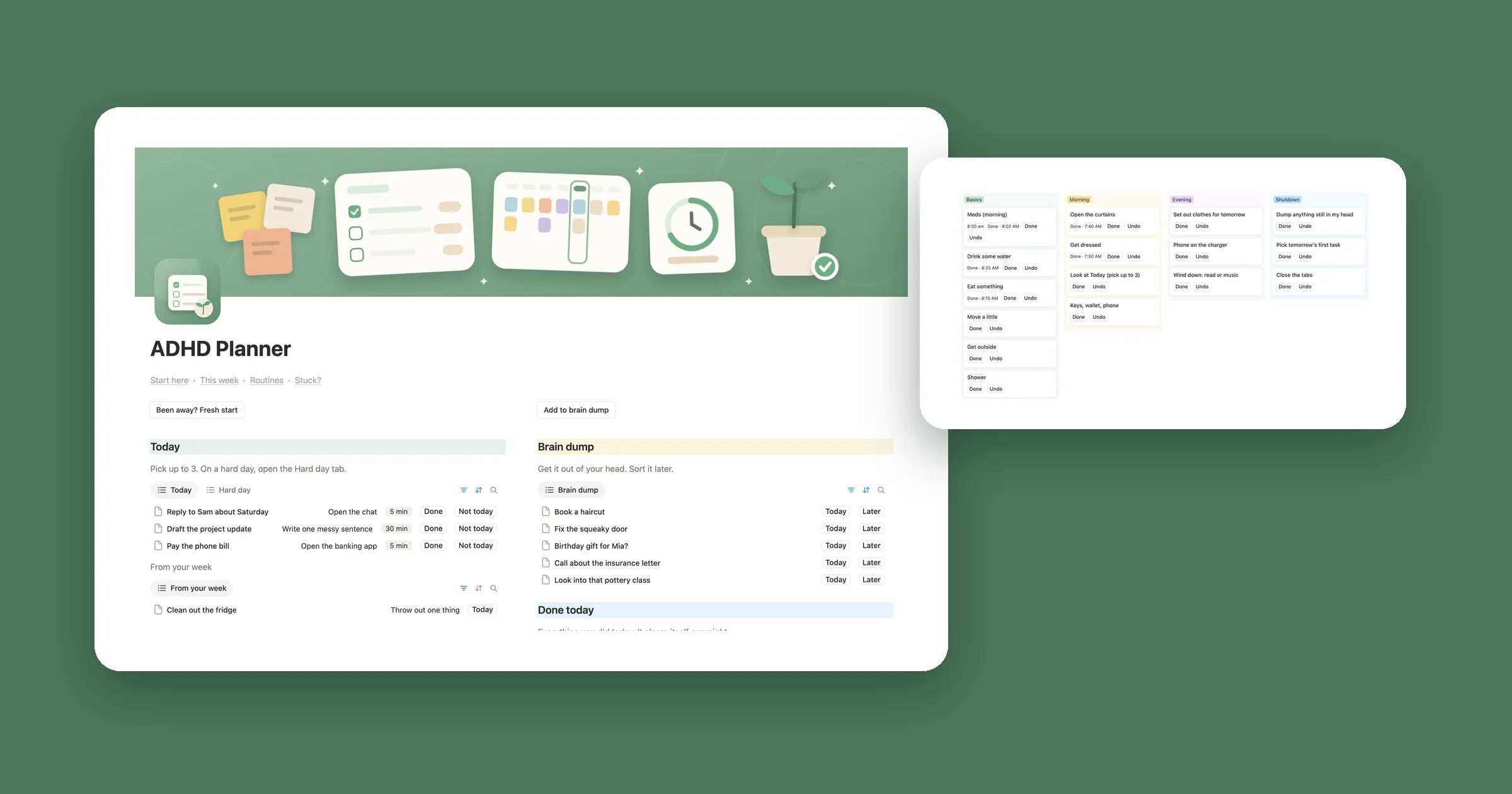

Try it: one calm day
Tap Done on a task or a basic, or Not today on a task you can’t face right now. Then click Next morning. That’s what the views and buttons below do in Notion: Done today empties itself, the basics come back, and nothing gets deleted.
3 for today, 1 of 4 basics done
Today
- Reply to Sam First step: Open the email
- Book the dentist First step: Find their number
- Pay the phone bill First step: Log in to the app
Today is clear.
Basics
- Drink water
- Take meds
- Eat lunch
- Go outside
All done for today.
Every so often
- Change the sheets 12 days ago
- Water the plants 3 days ago
- Clean the fridge Not done yet
Done today
- Reply to Sam
- Book the dentist
- Pay the phone bill
- Drink water 8:00 AM
- Take meds
- Eat lunch
- Go outside
- Change the sheets
- Water the plants
- Clean the fridge
Empty for now. Tap Done on anything above.
1. One list for everything
When we rebuilt our ADHD Weekly Planner, we read 112 reviews of ADHD templates for Notion. The ones people loved felt easy and didn’t overwhelm them. So this setup has two databases and a few buttons. Every task lives in one list, and you only ever look at a small part of it.
- Make a new page called My day. On it, type
/table, pick the table option and call the database Tasks. - Add the properties below.
| Property | Type | What it’s for |
|---|---|---|
| Task | Title | What to do, in a few words |
| Status | Select | Brain dump, Today, This week, Later, Done, Let go |
| First step | Text | The tiny thing that gets it going |
| Done on | Date | Filled in by the Done button |
A good first step takes a minute and needs no thinking: Open the email, not Answer everyone. Let go is for things you decide not to do. They leave your lists without being deleted.
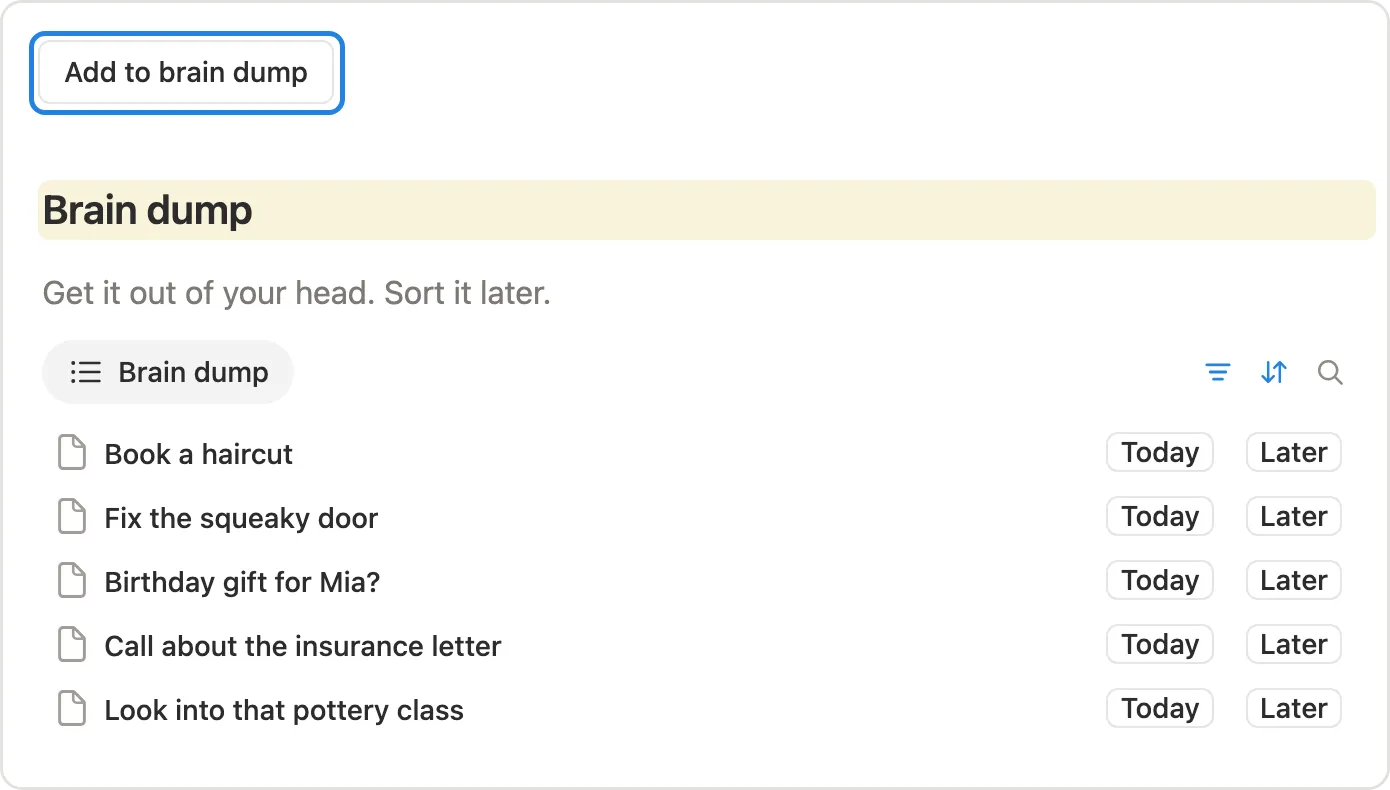
2. A brain dump button
A thought you can drop in one click doesn’t have to be held in your head. Put this button at the top of the page.
- Above the database, type
/buttonand name it Add to brain dump. - Under Do, click New action and choose Add page to. Pick Tasks, click Edit property, choose Status and pick Brain dump.
- Click Add action, choose Open page, form, or URL and pick Page added. Leave it on Center peek and click Done.
- Below the button, add a List view of Tasks called Brain dump, filtered to Status is Brain dump.
Click the button and a new page opens with the cursor in the title. Type the thought and press Esc. In our test, Ask Mia about the trip went straight into Tasks as Brain dump. Sorting can wait for a quiet moment.
3. Today, three at a time
Notion won’t stop a list from growing, but a view can show only what you need right now.
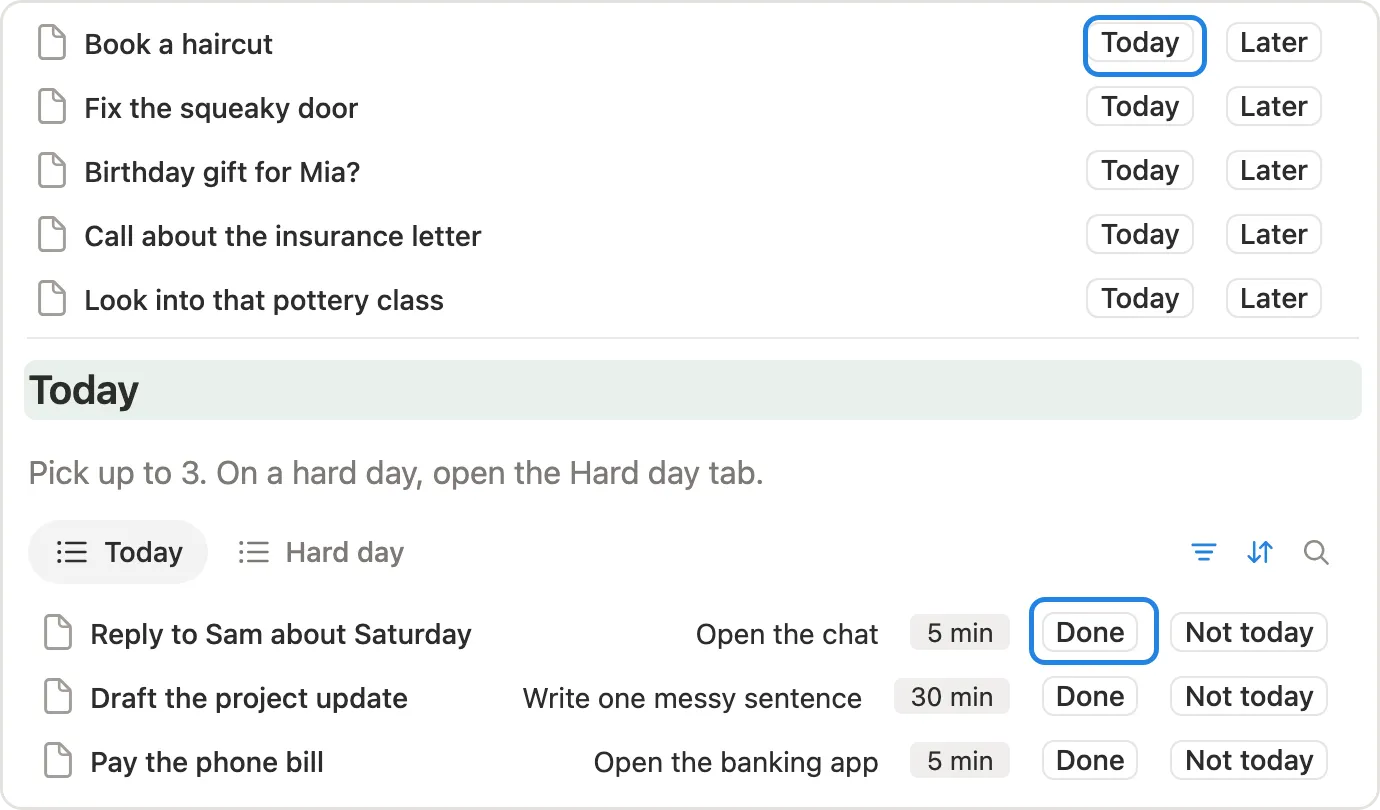
- Add a List view called Today, filtered to Status is Today. Set up to three tasks to Today.
- Add a Button property called Done and click Edit automation. Click New action, choose Edit property, pick Status and set it to Done. In the same action, add Done on and set it to Date triggered.
- Add one more button property, Not today, that sets Status to Later.
- Open the view’s settings, click Properties and show First step, Done and Not today, so every task shows how to start.
In our test, Done set Book the dentist to Done with the date, and it left Today. Not today does the same with Later, so the task waits there instead of sitting on your list.
On a hard day, three can still be too many. Add a Checkbox called Just this one and a second view that shows only the task you ticked.
4. Basics that reset overnight
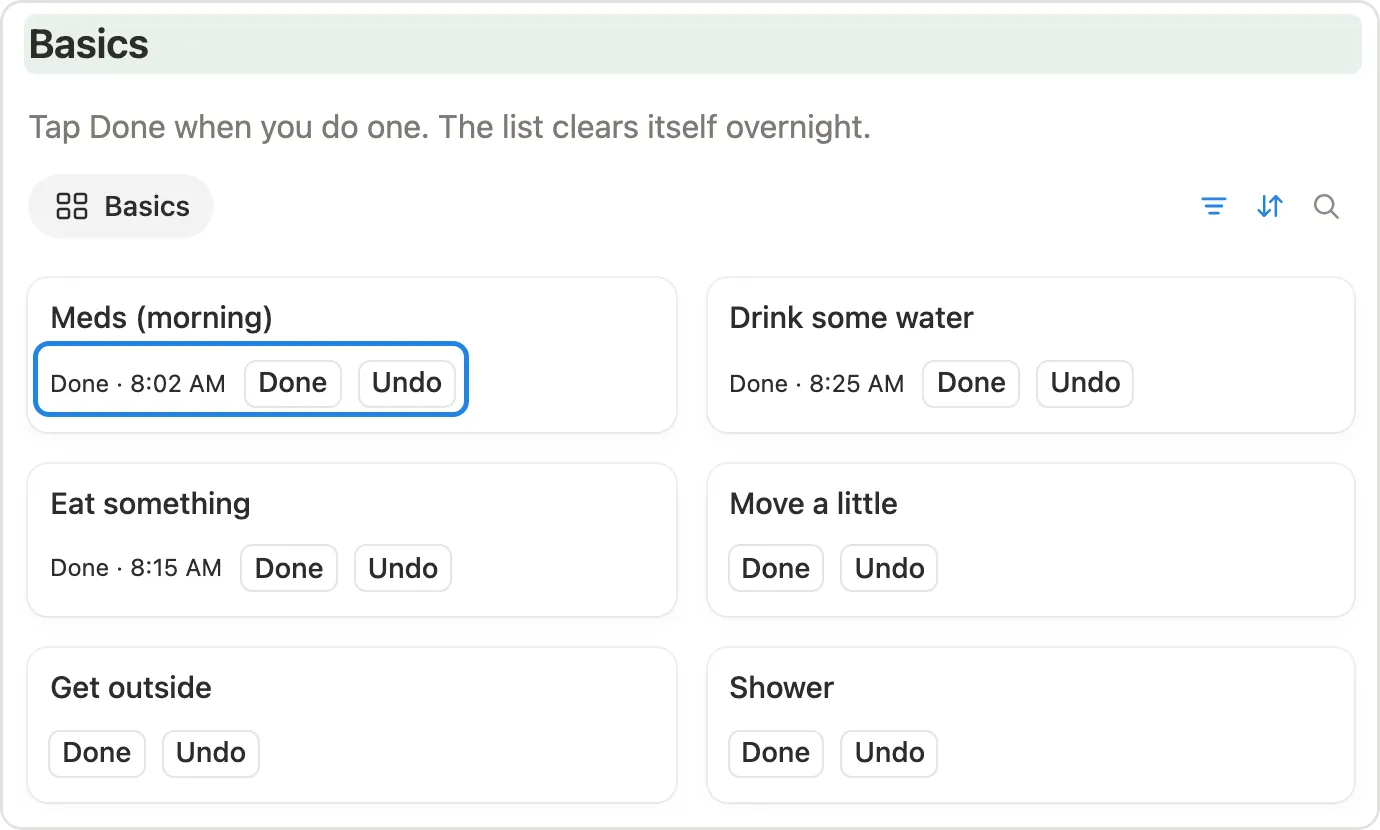
Water, meds, lunch: things you want to tick off every day, without unticking a list every night. Give them a database of their own.
- Add a second database called Routines, with a Select called List (Basics, Every so often) and a Date called Last done.
- Add a Button property called Done. Click Edit automation, then New action, Edit property, Last done and Time triggered. It stamps the date and time you tap it.
- Add a Formula property called Done at, so the time reads on its own:
formatDate(prop("Last done"), "h:mm A")Now two views. The first is your to-do list for the day, the second shows what you’ve done.
- Add a List view called Basics. Filter it to List is Basics. Then click Add filter group and add two rules joined by Or: Last done is before Today, and Last done is empty.
- Add a List view called Done today, filtered to Last done is Today, and show Done at.
That’s the whole reset. Nothing gets unticked at midnight: once the day changes, Last done isn’t today anymore, so each basic moves back to Basics by itself. In our test, Drink water from 8:00 AM sat in Done today, while Take meds, done the day before, was back in Basics. Tapping Done on Eat lunch stamped 12:37 PM and moved it across at once.
Want a list of finished tasks too? Add a view to Tasks filtered to Done on is Today. It empties itself overnight in the same way.
5. Chores that show how long it’s been
Some things need a nudge, not a schedule: changing the sheets, backing up your phone. Add them to Routines with List set to Every so often, and show how long it’s been instead of a due date. Add a formula called Ago:
if(
  empty(prop("Last done")),
  "Not done yet",
  let(
    days,
    dateBetween(
      today(),
      parseDate(formatDate(prop("Last done"), "YYYY-MM-DD")),
      "days"
    ),
    ifs(
      days == 0, "Today",
      days == 1, "Yesterday",
      format(days) + " days ago"
    )
  )
)
Then add a List view called Every so often, filtered to List is Every so often and sorted by Last done. The same Done button resets the count. On October 31, Ago showed Today for 8:00 that morning, Yesterday for 9:00 PM the night before, 12 days ago for October 19, and Not done yet for a chore with no date.
A shorter formula, dateBetween(today(), prop("Last done"), "days"), looks like it would work, but it counts whole 24 hour blocks, not days on the calendar. In our test it said 0 for
9:00 PM the night before and 11 for a chore done 12 days earlier. Turning Last done into a plain date first, as the formula above does, gets it right.
6. A fresh start button
After a few days away, Today and This week can feel like a pile. One button moves all of it to Later, so you can pick again from a clear page.
- Type
/buttonand name it Fresh start. - Click New action, choose Edit pages in and pick Tasks. Click all pages and add a filter: Status is Today and This week (pick both).
- Click Edit property, choose Status and pick Later. Click Done.
In our test, one click said Edited 3 pages. Everything in Today and This week moved to Later. Done and Brain dump weren’t touched, and nothing was deleted.
Our template asks before it runs. To do the same, add Show confirmation as the first action.