

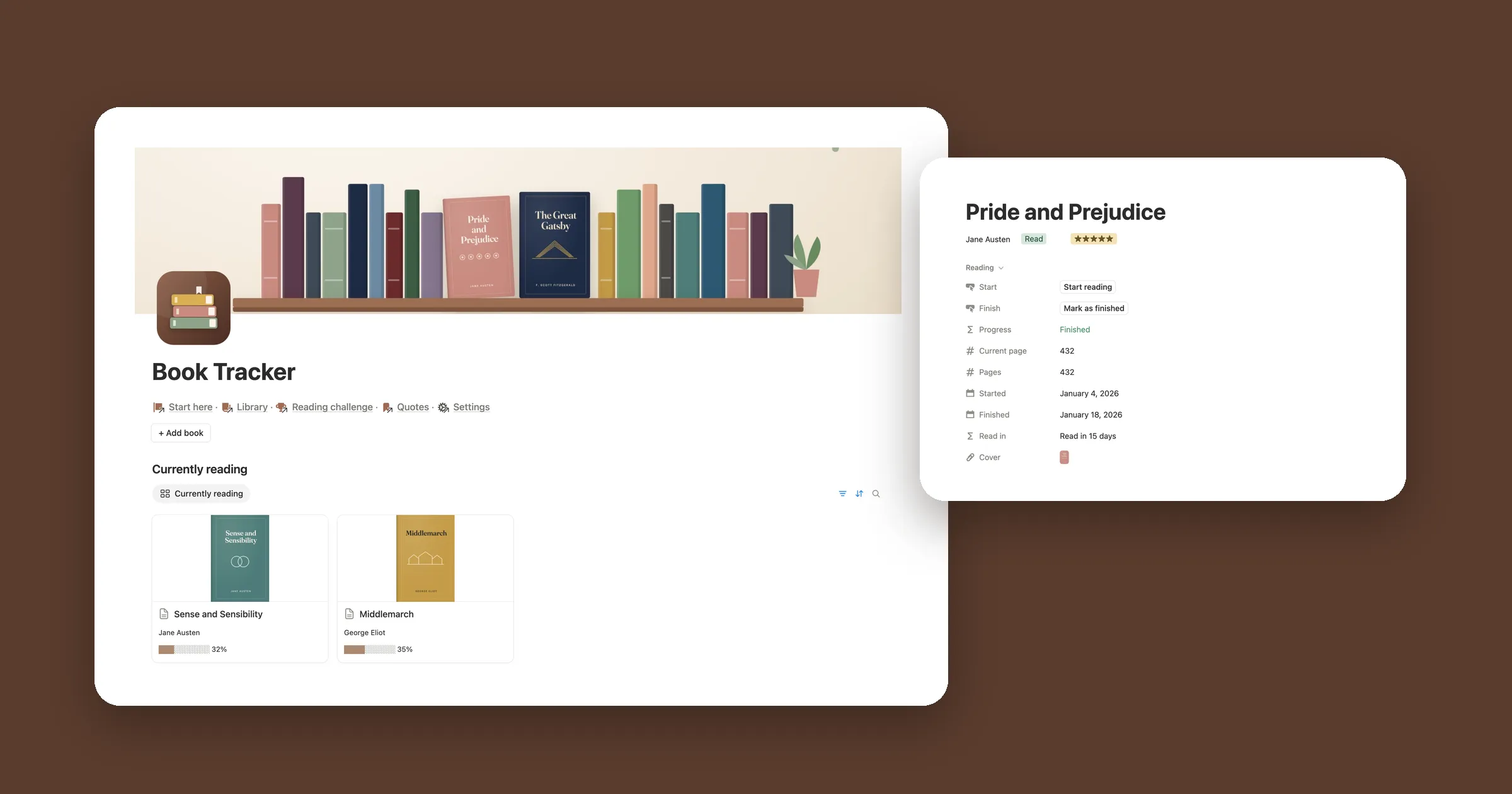

Try it: reading now and your year
Type the page you’re on and the bar moves. Press Finish and the book moves to your year, with how long it took. The bottom row counts the books, adds up the pages and averages your ratings, like Notion’s Calculate row. The sample is our test from October 31.
Reading now
- Sense and Sensibility of 409
- Middlemarch of 880
Read this year
| Title | Pages | Read in | Rating |
|---|---|---|---|
| Emma | 474 | 1 day | |
| Pride and Prejudice | 432 | 9 days | |
| Frankenstein | 280 | 7 days | |
| Jane Eyre | 532 | 24 days | |
| Count 4 | Sum 1718 | Average 4.25 |
1. A database for your books
Every book goes into one database, whatever its status. One list lets you show the same books in different ways later.
- Make a new page called Reading. On it, type
/table, pick the table option and call the database Books. - Add the properties below. Give Status three options: To read, Reading and Read.
- Add a page for each book you’re reading now, and a few you’ve finished this year.
| Property | Type | What it’s for |
|---|---|---|
| Title | Title | The book |
| Author | Text | Who wrote it |
| Status | Select | To read, Reading or Read |
| Pages | Number | How many pages the book has |
| Current page | Number | The page you’re on |
| Started | Date | The day you started |
| Finished | Date | The day you finished |
| Rating | Number | 1 to 5, once you’ve read it |
2. A progress bar on every book
Add a Formula property to Books called Progress:
if(
  prop("Status") == "Read",
  1,
  if(
    prop("Pages") > 0,
    min(
      prop("Current page") /
        prop("Pages"),
      1
    ),
    0
  )
)
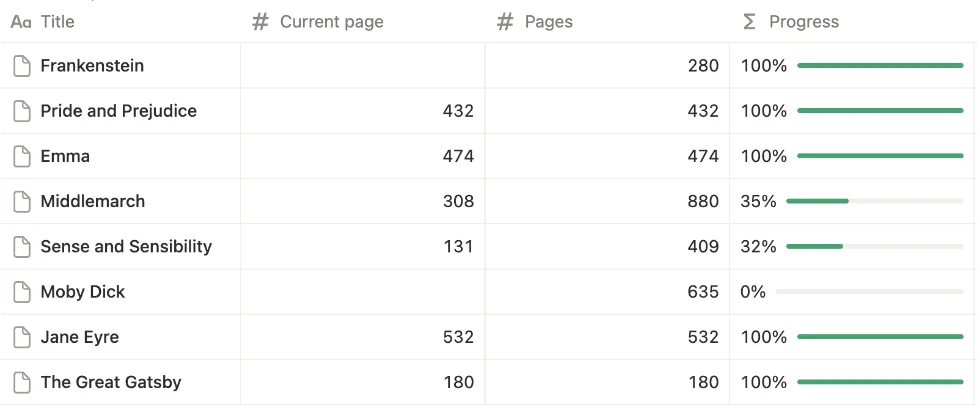
It divides the page you’re on by the pages in the book. A book set to Read counts as done even if you never typed the last page, and min stops the
bar at 100% if you type a page past the end.
The formula gives a number like 0.32. To turn it into a bar:
- Click the Progress column name and pick Edit property.
- Set Number format to Percent and Decimal places to 0.
- Under Show as, pick Bar. Choose a color and leave Show number on.
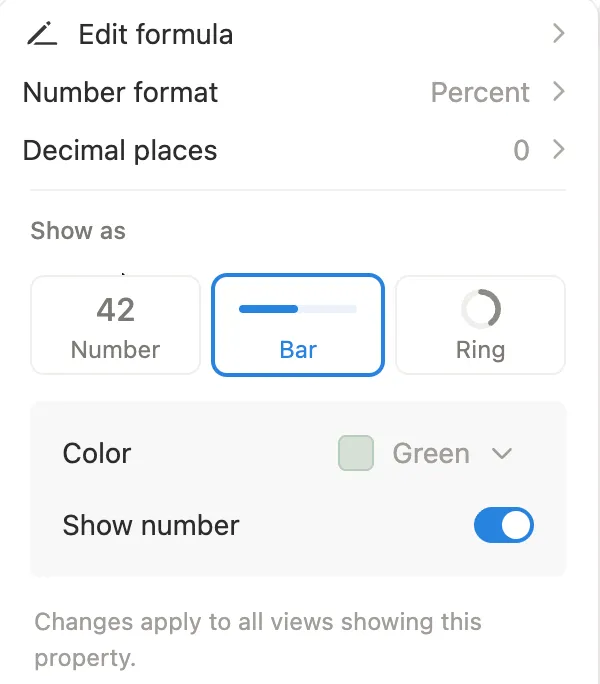
Don’t skip Decimal places. Left on Default, Notion shows every digit: in our test, Sense and Sensibility, on page 131 of 409, said 32.0293398533% until we set it to 0.
3. What you’re reading now
The view you’ll open most is a short shelf of the books you’re in the middle of.
- Click + next to the view name, add a Gallery view and call it Reading now.
- Click Filter, pick Status and tick Reading.
- In the view’s Properties, show Author and Progress.

Want covers on the cards? Add a cover to each book page, then open the view’s Layout and set Card preview to Page cover.
4. How long each book took
Add a formula called Read in. It counts the days from Started to Finished, both days included:
if(
  empty(prop("Started")) or
    empty(prop("Finished")),
  "",
  lets(
    d, dateBetween(
      prop("Finished"),
      prop("Started"),
      "days"
    ) + 1,
    format(d) +
      if(d == 1, " day", " days")
  )
)
Emma, started and finished on the same day, showed 1 day. Pride and Prejudice, read from October 1 to 9, showed 9 days, and Jane Eyre took 24. Until a book has both dates, Read in stays empty.
The + 1 counts the day you started. Without it, a book you start and finish on the same day would say 0 days.
5. Your reading year in numbers
Last, a view of the books you finished this year, with the totals at the bottom.
- Add a Table view called Read this year.
- Click Filter, pick Status and tick Read.
- Add a second filter on Finished. It starts as Is relative to today, This week. Change week to year.
- Click Sort, pick Finished and set it to Descending, so the newest is on top.
- Click the Title column name, pick Calculate, then Count and Count all. Do the same on Pages with More options and Sum, and on Rating with More options and Average.
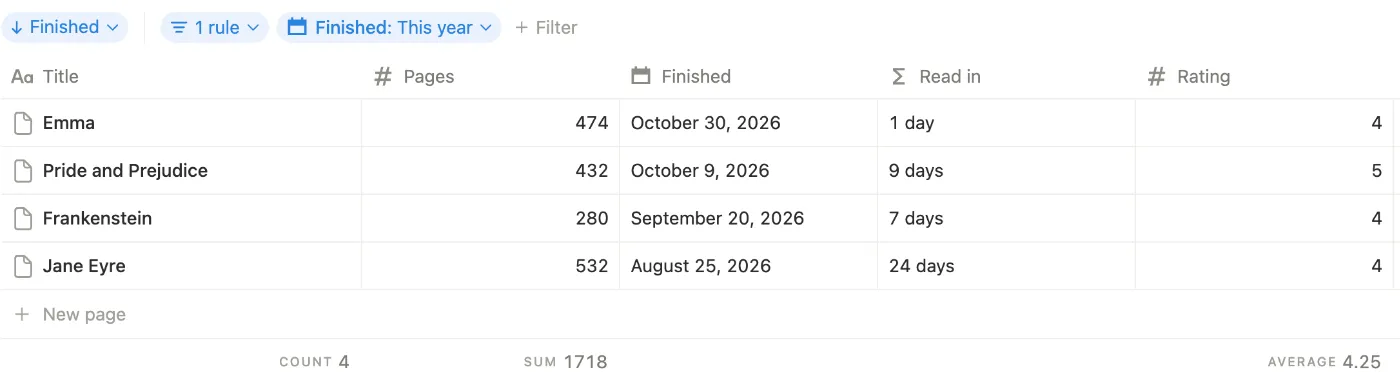
The view keeps itself up to date. This year always means the current year, so on January 1 it starts again from zero, and last year’s books stay in Books.
A book you haven’t rated yet doesn’t pull the average down. In a second test with ratings of 4 and 5 and one left empty, Average showed 4.50.